Converting Scanned Bank Statements: OCR, Accuracy Risks, and How to Verify the Numbers
Converting Scanned Bank Statements: OCR, Accuracy Risks, and How to Verify the Numbers
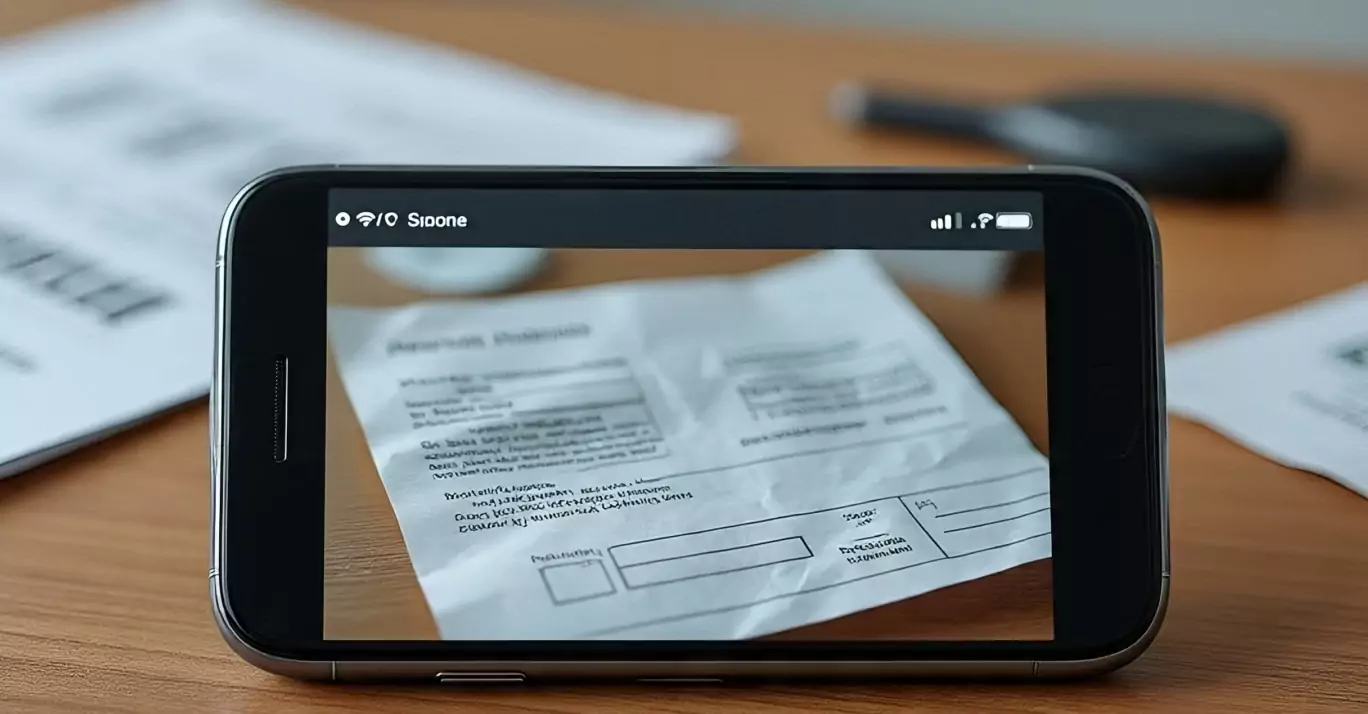
Not all PDF bank statements are the same kind of file. A statement downloaded from your bank's website contains real text — every date, description, and amount exists as characters a computer can read directly. A statement that was printed and scanned, photographed with a phone, or faxed contains none of that. It's a picture of text, and every tool that works on the first kind fails completely on the second.
Scanned statements show up more often than you'd expect: old statements a bank no longer offers online, documents a client emails as phone photos, paper records from an estate or an audit, statements pulled from a filing cabinet for a loan application. Converting them to Excel or CSV is absolutely doable — but it goes through OCR, and OCR on financial documents has failure modes you need to understand before you trust the output.
First: Is Your PDF Actually Scanned? The 10-Second Test
Open the PDF in any viewer — Adobe Reader, Chrome, Preview — and try to select a line of text with your cursor, the way you'd highlight text on a web page.
- Individual words highlight as you drag: the PDF has a text layer. It's digitally generated (or already OCR'd), and standard extraction methods apply. Our guide to converting bank statements to Excel covers those.
- Nothing selects, or dragging draws a selection box over the whole page as if it were a photo: the PDF is image-only. There are no characters in the file — just pixels.
Two more clues: Ctrl+F for a word you can see on the page (like the bank's name) finds nothing in an image-only PDF. And file size is suggestive — a digitally generated 5-page statement is often under 200 KB, while a scanned one runs into the megabytes, because it's storing full-page images.
One hybrid case worth knowing: some scanners and copiers apply their own built-in OCR and embed an invisible text layer behind the image. Text selects, but what you're selecting is the scanner's guess, not ground truth — treat it with the same suspicion as any OCR output described below.
Why Copy-Paste Produces Garbage on Scanned Documents
On a true image-only PDF, copy-paste produces literally nothing — there's no text to copy. On the hybrid kind, paste "works" and that's worse, because what comes out is the scanner OCR's raw guess: transaction rows collapsed into a single stream of text, column boundaries gone, and characters mangled wherever the scan was imperfect. You'll see amounts like 1,Z45.67, dates like O6/l5, and description fragments from adjacent columns fused together.
The column problem deserves emphasis. Even flawless character recognition doesn't give you a table. A statement's structure — this number is an amount, that one's a running balance, this line is a continuation of the description above — lives in visual layout, and plain OCR output is just lines of text. Reconstructing the table is a separate, harder problem than reading the characters, which is why generic OCR tools hand you a text dump and leave the spreadsheet part to you.
What Determines OCR Accuracy on Bank Statements
OCR quality isn't a fixed property of the software — it's mostly a property of the input image. The factors that matter:
Resolution
300 DPI is the standard target for OCR; below roughly 200 DPI, characters lose the pixel detail that distinguishes similar shapes, and error rates climb fast. Statement type is small — often 7 or 8 point in the transaction table — so it has less resolution headroom than ordinary documents. If you control the scanning, scan at 300 DPI in black and white or grayscale. If you're photographing with a phone, fill the frame with the page and make sure the numbers are sharp when you zoom in on the photo.
Skew and distortion
A page scanned at a slight angle tilts every text baseline, and OCR engines segment text line by line — enough skew and characters from one row start bleeding into the next, which on a bank statement means an amount can attach to the wrong transaction. Phone photos add perspective distortion (the page is a trapezoid, not a rectangle) and curvature if the page wasn't flat. Good OCR pipelines deskew automatically, but they correct small angles, not a photo taken at 30 degrees off-axis under a desk lamp.
Contrast, noise, and artifacts
Faded thermal-paper printing, coffee stains, hole punches through digits, shadows across the page, the gray haze of a multi-generation photocopy — all of these turn crisp glyphs into ambiguous blobs. Fax copies are reliably the worst input: low resolution and compression artifacts stacked on top of each other.
Fonts — especially on older statements
Statements from the 1980s and 90s, and some from small banks and credit unions well after that, were printed on dot-matrix or line printers. Dot-matrix glyphs are literally clusters of dots; at scan resolution the dots may not even connect into strokes, and OCR engines trained on solid typefaces struggle badly. If you're digitizing decades of old statements for an estate or a legal matter, expect the oldest ones to need the most manual correction, and scan them at higher resolution (400–600 DPI) to give the engine connected strokes to work with.
Why Numbers Are the Highest-Risk Part of the Page
Here's the asymmetry that makes financial OCR different from OCRing a letter: language gives words a safety net, and numbers have none. If OCR reads "AMAZQN" the error is obvious, harmless, and often auto-corrected by the engine's dictionary. If it reads a digit wrong, the result is a different, perfectly plausible number. Nothing about "$481.15" announces that the page said "$431.15."
The classic confusions, all of which occur between characters that are near-identical in many fonts:
- 1, l, I, 7 — the digit one, lowercase L, capital i, and (in degraded scans) seven
- 0, O, D, 8 — zero vs. capital O, and with noise or fill-in, D and 8
- 5 and S, 6 and b, 2 and Z, 4 and 9 — a smudge or a broken stroke is all it takes
- Missed decimal points and commas — punctuation is only a few pixels, so 1,240.50 can come through as 124050 or 1240.50 as 1240-50. A lost decimal point turns a $12.40 charge into $1,240.
- Lost minus signs and parentheses — a faint "-" or a "(" clipped at a column edge silently flips a withdrawal into a deposit
Context helps modern engines with letters far more than with digits — an amount column legitimately contains almost any digit sequence, so there's no dictionary to check against. This is why any workflow that OCRs bank statements without a verification step is a workflow that will eventually put a wrong number in front of an accountant, a lender, or the IRS.
The Sanity Check: Reconcile Against the Statement's Own Balances
Fortunately, bank statements ship with a built-in error detector. Every statement prints a beginning balance and an ending balance, and the transactions in between must connect them exactly:
Beginning balance + deposits − withdrawals = ending balance
After converting a scanned statement, do this before using the data:
- In your spreadsheet, sum the signed amount column (or sum credits and debits separately if they're split).
- Add the total to the printed beginning balance.
- Compare to the printed ending balance. It must match to the penny.
If it matches, you have strong evidence every amount was read correctly — a misread digit would have to be exactly offset by an opposite error elsewhere, which is unlikely. If it's off, the size of the discrepancy tells you what to look for: off by a clean amount like $50.00 suggests a missing or duplicated row (search the PDF for a transaction of that amount); off by something like $270.00 could be a single digit misread by 3 in the hundreds place; off by a huge factor points to a lost decimal; off by exactly twice a transaction's amount means its sign got flipped.
Two more cheap checks: count the rows — many statements print a transaction count or list checks in numeric order, so gaps are visible — and spot-check the running balance if the statement has a balance column, since each row's balance must equal the previous balance plus the row's amount, which localizes an error to the exact row where the chain breaks.
Multi-page statements deserve extra attention at page boundaries. The last transaction on a page and the first on the next are where scans get cut off and OCR drops rows, and a dropped row is invisible until the reconciliation fails.
A Realistic Workflow for Scanned Statements
- Get the best image you can. Rescan at 300 DPI if the original paper is available — five minutes of rescanning beats an hour of correcting bad OCR. Flatten the page, square the camera, avoid shadows.
- Run it through a converter that pairs OCR with table reconstruction. Bank PDF Converter is built for exactly this: it OCRs image-only statements and reconstructs the transaction table — dates, descriptions, signed amounts, one row per transaction — into Excel or CSV, using its knowledge of how banks like Chase, Bank of America, and Wells Fargo lay out their statements to keep columns intact. The free tier is 1 page per day anonymously, or 5 pages per day with a free account, so you can test your worst-quality page before committing to anything.
- Reconcile against the beginning and ending balances, as above. Non-negotiable for scanned input.
- Spot-check the ugly spots. Whatever looked worst on the scan — faded rows, the stapled corner, the fold line — check those transactions against the image by eye.
- Then use the data — analysis in Excel, or import into QuickBooks, knowing the totals actually tie out.
The honest summary: OCR on a clean 300 DPI scan of a modern statement is very good, and on a crumpled phone photo of a 1993 dot-matrix printout it will need your help. Either way, the balance reconciliation is what turns "probably right" into "verified" — it's five minutes of arithmetic that catches the one class of error OCR can't announce on its own.